In this guide
1. Example design and decisions
This procedure uses a domain environment with two Windows Server DHCP hosts and an existing IPv4 scope on DHCP01. Replace all example names, addresses and scope IDs before running commands.
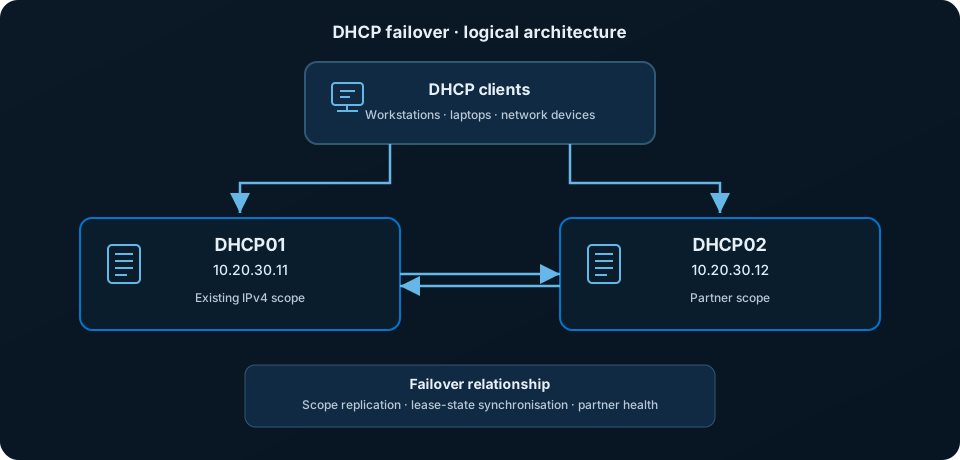
Conceptual architecture. This is an authored diagram, not a captured Windows Server screenshot.
| Setting | Example | Notes |
|---|---|---|
| Primary server | DHCP01 — 10.20.30.11 | Existing scope is configured here. |
| Partner server | DHCP02 — 10.20.30.12 | Must be reachable and ready to host the scope. |
| IPv4 scope ID | 10.20.30.0 | Use the network address, not a server address. |
| Relationship name | DHCP01-DHCP02 | Choose a clear, unique name. |
| Mode | Load balance, 50% | Both partners normally serve clients. |
Load balance or hot standby?
Load balance shares client servicing between partners and is a reasonable default where both servers should normally participate. Hot standby designates one active server and reserves the other for backup, with a configured reserve percentage and state-transition behaviour. Choose based on operational requirements, not just convenience.
2. Prerequisites
- Both servers use static IP addresses and reliable DNS resolution.
- The DHCP Server role is installed on both hosts.
- Both servers are authorised in Active Directory where required by the environment.
- DHCP01 has the production scope configured and enabled as intended.
- DHCP02 does not have an independently configured duplicate of that scope.
- Required DHCP failover traffic can pass between the servers; verify firewall rules against Microsoft's current requirements and your network policy.
- You have suitable DHCP administration rights, access to event logs and an approved change window.
- Existing DHCP options, exclusions, reservations and dynamic DNS settings have been documented.
3. Back up the current configuration
Run this from an elevated PowerShell session on a host with the DHCP PowerShell module. Store the backup in an access-controlled location with sufficient free space. Repeat for DHCP02 if it already holds DHCP configuration.
$BackupPath = "C:\DHCP-Backup"
New-Item -Path $BackupPath -ItemType Directory -Force
Export-DhcpServer -ComputerName "DHCP01" -File "$BackupPath\DHCP01-before-failover.xml" -Leases
Confirm that the export completed and the file exists. Protect the export as operational configuration data; it may contain infrastructure details and lease information.
4. Pre-flight checks
Run these checks before changing anything. Confirm the scope ID matches the actual network address for your deployment.
Get-DhcpServerv4Scope -ComputerName "DHCP01"
Get-DhcpServerv4Scope -ComputerName "DHCP02"
Get-DhcpServerInDC
Resolve-DnsName "DHCP01"
Resolve-DnsName "DHCP02"
Test-NetConnection "DHCP02" -Port 647
Port 647 is the standard DHCP failover TCP port. A successful TCP test is useful but does not prove the complete failover relationship is healthy. If it fails, check the path and firewall policy before proceeding. Also verify each server's address, route, time synchronisation and DHCP authorisation state.
5. Create the failover relationship
Run the following from an elevated PowerShell session with the DHCP Server module and permissions to administer DHCP01. Change the example values first. Enter a strong, unique shared secret when prompted; do not commit it to a script or source control.
$ScopeId = "10.20.30.0"
$FailoverSecret = Read-Host "Enter a strong DHCP failover shared secret"

Add-DhcpServerv4Failover `
  -ComputerName "DHCP01" `
  -Name "DHCP01-DHCP02" `
  -PartnerServer "DHCP02" `
  -ScopeId $ScopeId `
  -LoadBalancePercent 50 `
  -SharedSecret $FailoverSecret
Review the cmdlet output and any confirmation prompt. The relationship creation operation configures the relationship with the partner and associates the selected scope. Do not run it repeatedly if the result is uncertain; inspect the current relationship on both servers first.
GUI alternative
- Open DHCP from Server Manager or the Windows administrative tools.
- Connect to DHCP01 and expand IPv4.
- Select the intended scope or the IPv4 node, then choose the Configure Failover action available in that console version.
- Select only the intended scope and specify DHCP02 as the partner server.
- Choose load balancing or hot standby, configure the relationship settings and enter the shared secret.
- Review the summary carefully before completing the wizard.
6. Verify configuration and health
Check the relationship on DHCP01, then independently query DHCP02. Review all returned fields, including relationship mode, associated scopes, partner server and state.
Get-DhcpServerv4Failover -ComputerName "DHCP01" |
  Format-List *

Get-DhcpServerv4Failover -ComputerName "DHCP02" |
  Format-List *

Get-DhcpServerv4Scope -ComputerName "DHCP02"
Get-DhcpServerv4OptionValue -ComputerName "DHCP01" -ScopeId "10.20.30.0"
Get-DhcpServerv4OptionValue -ComputerName "DHCP02" -ScopeId "10.20.30.0"
Confirm the expected relationship and scope are present, communication is healthy and the intended options are consistent. Also inspect DHCP Server event logs on both hosts for warnings or errors. A relationship being listed is not, by itself, proof that client failover works.
7. Test client service and resilience
- Connect a test client to the relevant subnet and record its current lease, gateway and DNS settings.
- Confirm it can obtain a valid address while both DHCP servers are healthy.
- Confirm the lease appears in DHCP management and inspect the relationship state.
- In a controlled test, make one DHCP partner unavailable using an approved method.
- From a fresh test client or after an appropriate lease renewal, verify that the surviving partner can provide DHCP service.
- Restore the unavailable server and verify the relationship returns to a healthy state and lease state synchronises.
- Record timings, event logs and any observed client behaviour in the change record.
Existing clients may keep using valid leases and do not necessarily switch servers immediately. Partner-down behaviour depends on failover state, communication loss and configured timers. Avoid manually forcing a partner-down state unless the documented recovery procedure and the real failure conditions justify it.
8. Troubleshooting
| Symptom | Checks |
|---|---|
| Partner cannot be contacted | DNS, routing, firewall policy, TCP 647 and DHCP Server event logs. |
| Scope already exists on partner | Check for a duplicate or legacy split scope; document and resolve conflicts before creating failover. |
| Relationship is not healthy | Inspect state and event logs on both hosts; check time, connectivity and failover configuration. |
| Clients receive no address | Check scope activation, available addresses, relay/IP helper configuration, VLAN reachability and server logs. |
| Options differ | Compare scope options, reservations, policies and server-level options; confirm the intended configuration is applied on each server. |
| Dynamic DNS updates fail | Review DHCP DNS update settings, DNS permissions and the credentials used for secure updates. |
9. Rollback plan
Rollback should be a deliberate change, not the first troubleshooting action. Confirm which server will remain authoritative for client service, preserve a fresh export and understand the lease implications before removing the relationship.
Remove-DhcpServerv4Failover `
  -ComputerName "DHCP01" `
-Name "DHCP01-DHCP02"If configuration must be restored from export, follow the recovery plan appropriate to your Windows Server version and environment. Do not import over a live production DHCP configuration without reviewing the impact and Microsoft documentation first.
10. Acceptance checklist
Further reading
- Microsoft Learn: DHCP failover overview
- Microsoft Learn: Manage DHCP failover relationships
- Microsoft Learn: Add-DhcpServerv4Failover reference
- Microsoft Learn: Get-DhcpServerv4Failover reference
Engineering guide · Prepared for Windows Server DHCP environments. Validate procedures against the Windows Server versions and change-control requirements in your environment before production use.